Quick Start
Clinical tools for rehabilitation professionals.
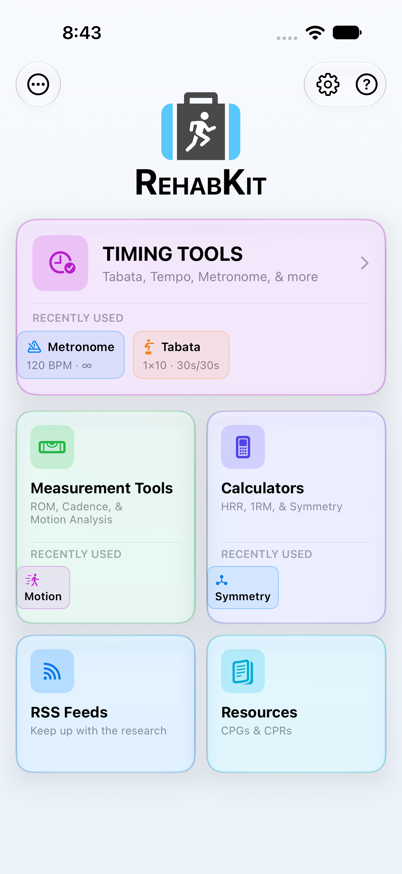
RehabKit’s home screen has five areas. Here’s a short tour, plus the settings worth knowing about before your first session.
- 1. The home screen Five areas, one place to start.
- 2. Run your first timed session Pick a timer, then build a Playlist.
- 3. Take your first measurement Range of motion, rotation, and video.
- 4. Helpful settings Sound, iPad display, and sync.
- 5. Help & resources Guide and direct support.
The Home Screen
- Timing Tools — Tempo, Tabata, Metronome, EMOM, Timer, and Playlist. Recently used timers appear as shortcuts at the top.
- Measurement Tools — range-of-motion (inclinometer and rotation), cadence, and video-based Motion Analysis.
- Calculators — Limb Symmetry Index for return-to-sport testing, Heart Rate Reserve for aerobic prescription, and One-Rep Max for resistance loading.
- RSS Feeds — recent articles from rehabilitation and sports-medicine journals.
- Resources — clinical practice guidelines and clinical prediction rules.
First time in? A short interactive tutorial walks you through the home screen. You can replay the tips from Settings → Beta Features → Show Tips Again.
Run Your First Timed Session
Step 1: Pick a Timer
- Tempo — prescribes the concentric : isometric : eccentric : rest timing of each rep, with your chosen reps, sets, and recovery. Use it for eccentric loading, slow-tempo strengthening, and isometric holds.
- Tabata — work/rest intervals with a set work-to-rest ratio, for conditioning and late-stage return-to-sport work.
- Metronome — a steady auditory cue from 1 to 200 beats per minute for gait and running cadence retraining, paced sit-to-stand or step-ups, and rhythmic drills.
- EMOM — a new round starts every minute with set and rep tracking, for density-based strengthening and work-capacity progressions.
- Timer — For Time for functional tests such as the Timed Up and Go or five-times sit-to-stand and for timed holds, or Recovery to standardize rest intervals.
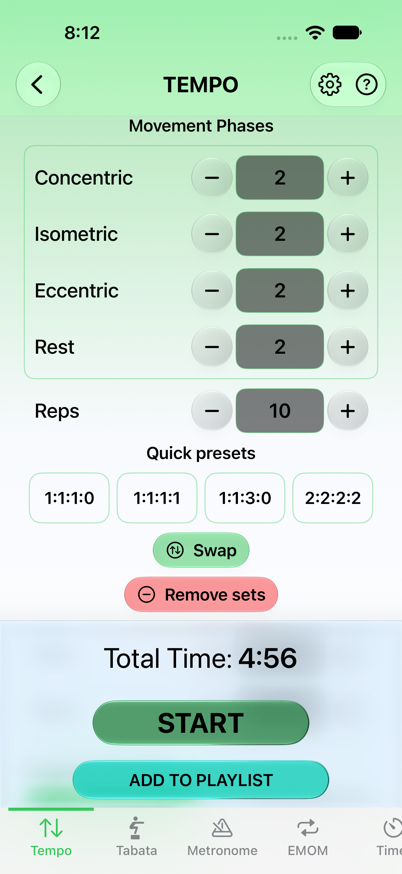
Set your values, then tap play.
Step 2: Build a Playlist
Use Playlist to chain timers into an in-clinic treatment sequence or a home exercise program (HEP). Group steps into a circuit that repeats for a set number of rounds, attach a demonstration video or photo to any step, and run the whole program with one tap. Share it with a patient or colleague by AirDrop or QR code.
Take Your First Measurement
- Inclinometer (AROM/PROM). Secure the iPhone to the segment, zero it at the starting position, move the joint to end range, and tap to capture the angular displacement. Use it for cervical, shoulder, hip, knee, trunk, and ankle (weight-bearing lunge) measurements. Trials are saved so you can compare sides.
- Rotation. For transverse-plane motion such as cervical rotation or shoulder and hip internal/external rotation. Keep the device level; the app warns you if it tilts.
- Cadence. Tap along with the patient’s steps to get steps per minute and step-interval variability for gait and running assessment.
- Motion Analysis. Record slow-motion video or import a clip, and RehabKit tracks 14 landmarks, shows hip, knee, ankle, shoulder, and elbow angles, and lets you step frame by frame and add your own line and angle measurements for gait, running, and functional-movement analysis.
Measurement tools are aids to your clinical assessment. Standardize placement and landmarks as you would with a goniometer — see the User Guide for use-models and filming tips.
Helpful Settings
- Sound & Haptics. Choose the cue volume and whether voice announcements and haptics are on. Cues play with the screen locked and over the silent switch.
- Clinic Display Mode. On iPad, makes the running screen large and high-contrast for viewing across the room. On by default.
- Text Size. Set a preferred text size in Appearance, or follow your device’s setting.
- Playlist Sync. Open Settings → Playlist Sync and turn on iCloud sync to keep playlists on all your devices signed in to the same Apple Account.
- Tap to pause/resume. Optional: tap the progress circle during a session to pause or resume.
Help & Resources
- User Guide. Detail on every tool, calculator, and setting: open the User Guide.
- Videos. Watch each tool in action, from Tempo exercises to cervical and lumbar range-of-motion measurement: see the videos.
- Direct help. Questions, feedback, or a bug to report? Email support@SchumacherPT.com.